 RecoverPro
RecoverPro finds deleted and lost files on your NTFS, FAT and exFAT drives, deep-scans for photos, documents and video when the file system has lost them, and shows how recoverable each file is before you save anything.
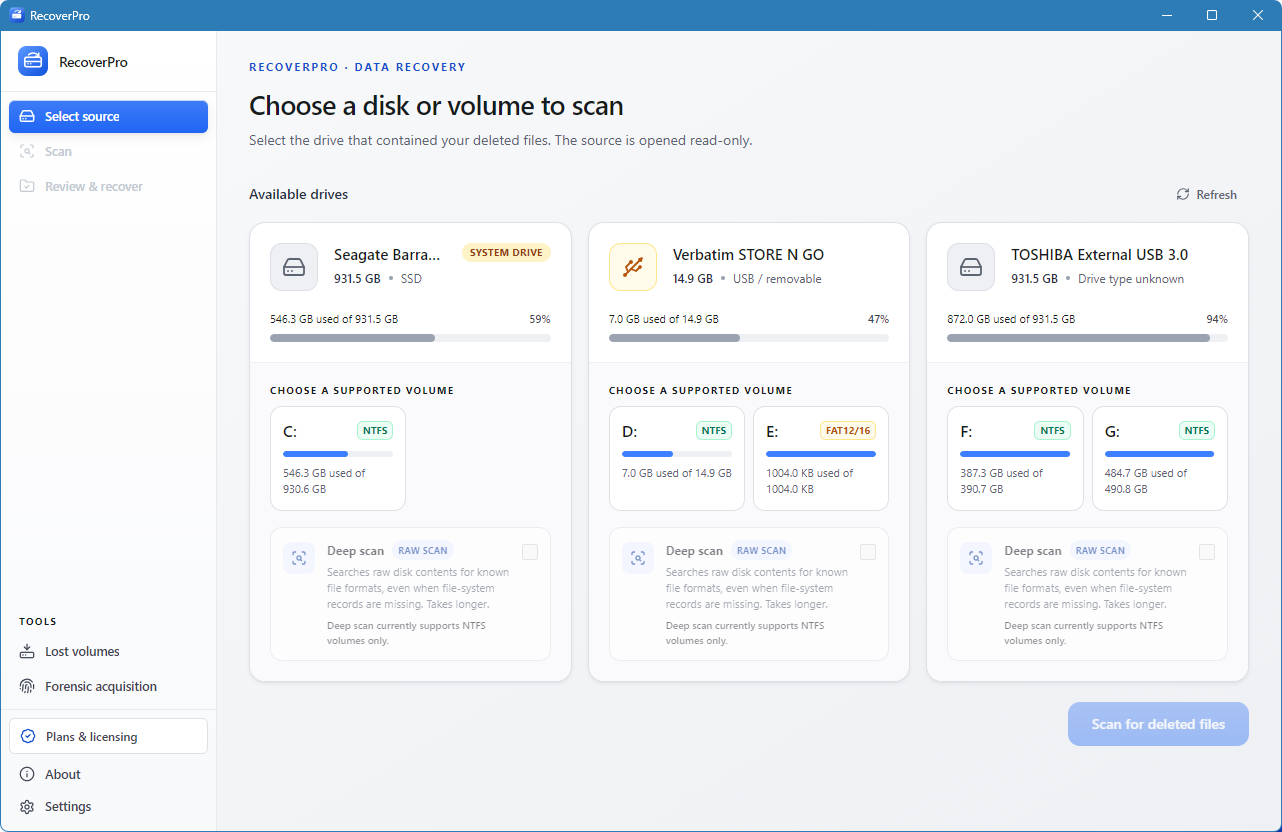
Choose the drive or volume that held the files. It is opened read-only, and SSD and system-drive warnings appear before you start.
A quick pass reads the file system. Add a deep scan for signature-based search when the file system has lost track of a file.
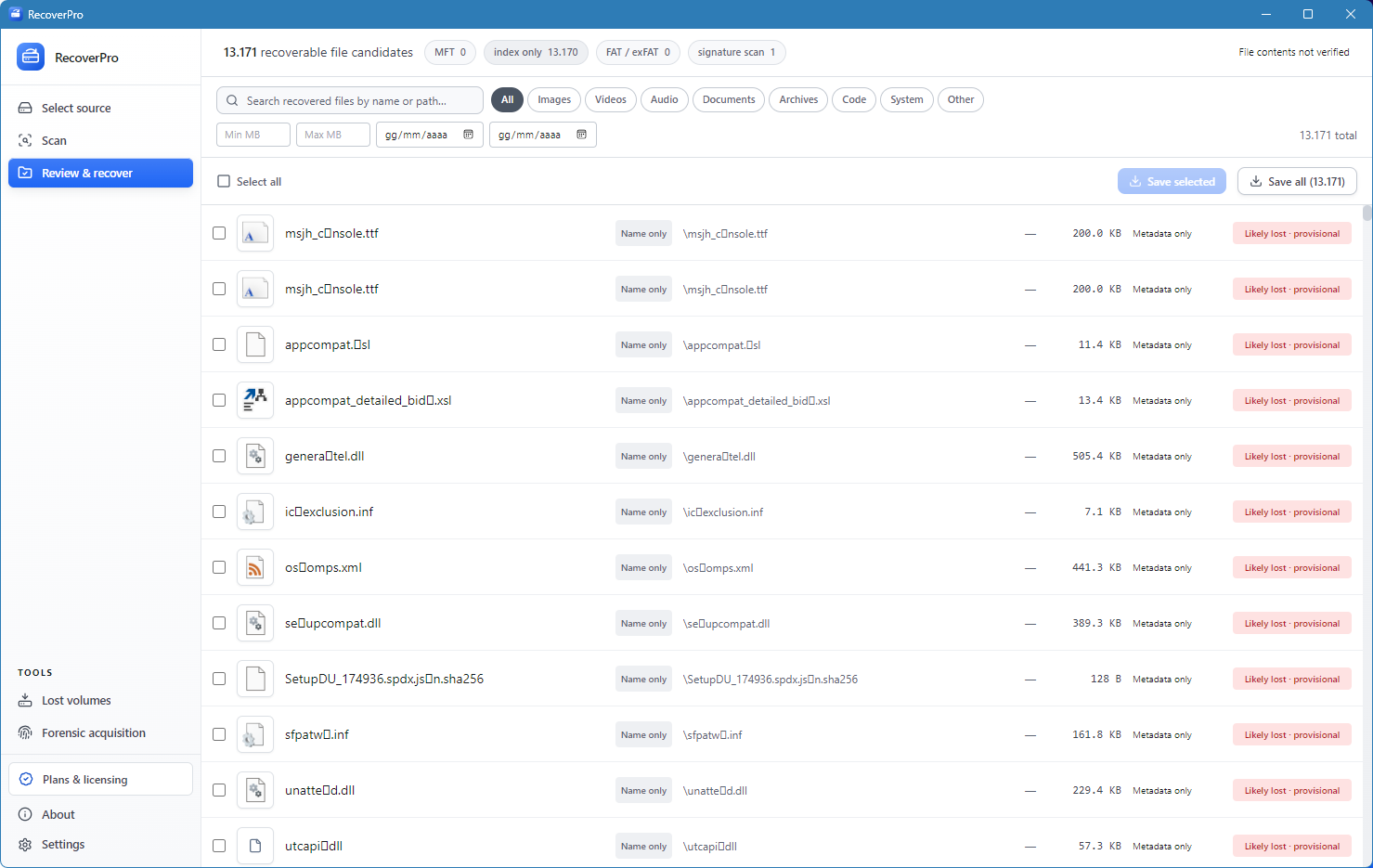
Check each candidate’s rating and status, select what you need, and save it to a different location.
RecoverPro lists physical drives and their volumes with file system, size and usage. The source is opened read-only, so the scan itself cannot overwrite the data you are looking for.
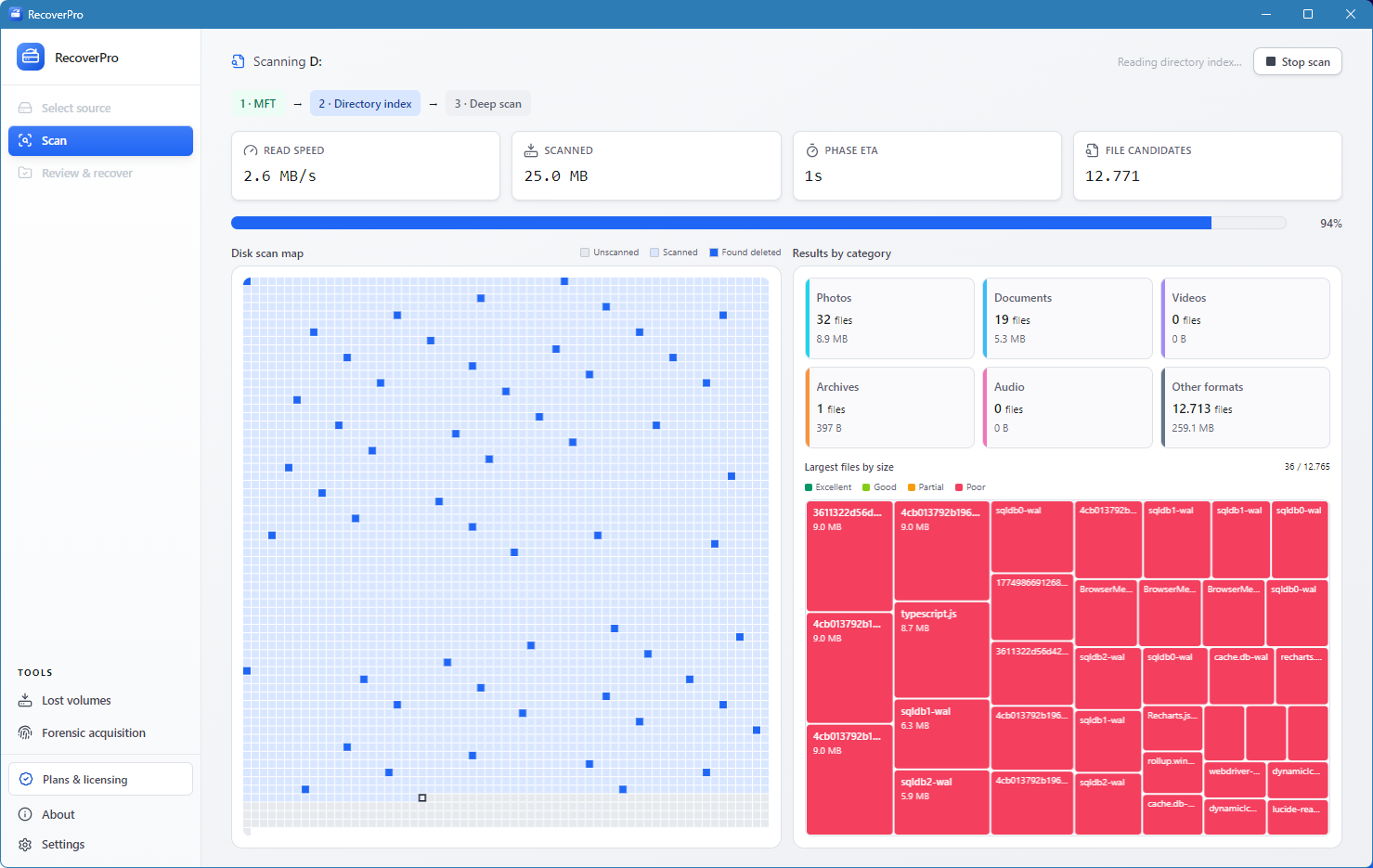
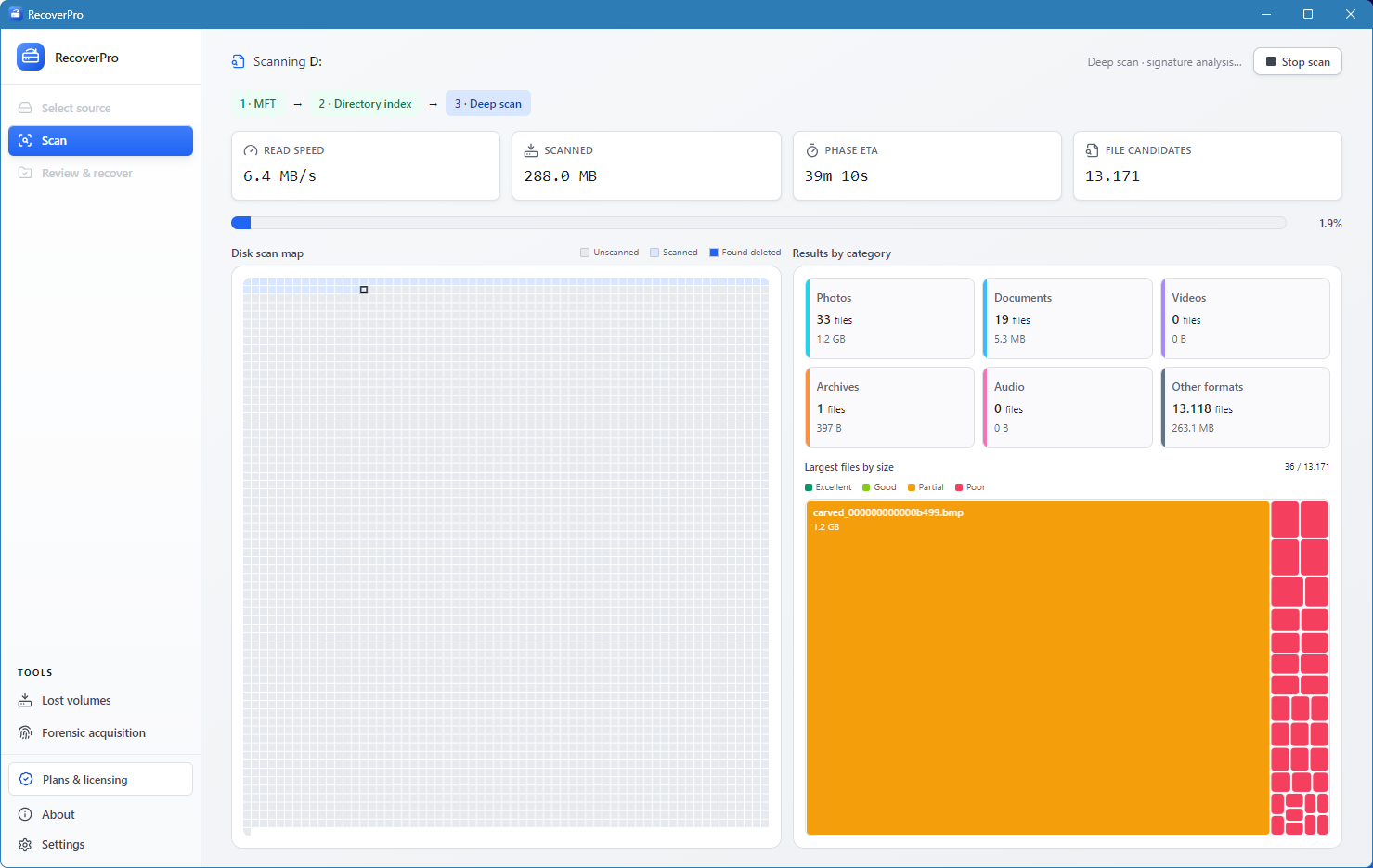
The quick pass reads the NTFS Master File Table and the directory index. The disk map shows which areas have been read and where deleted entries were found, while the scan is still running.
Deep scan reads the raw sectors of the volume and looks for the signatures of known formats, such as JPEG, PNG, PDF, ZIP and SQLite. It is slower, and it finds files even when their directory entries are gone.
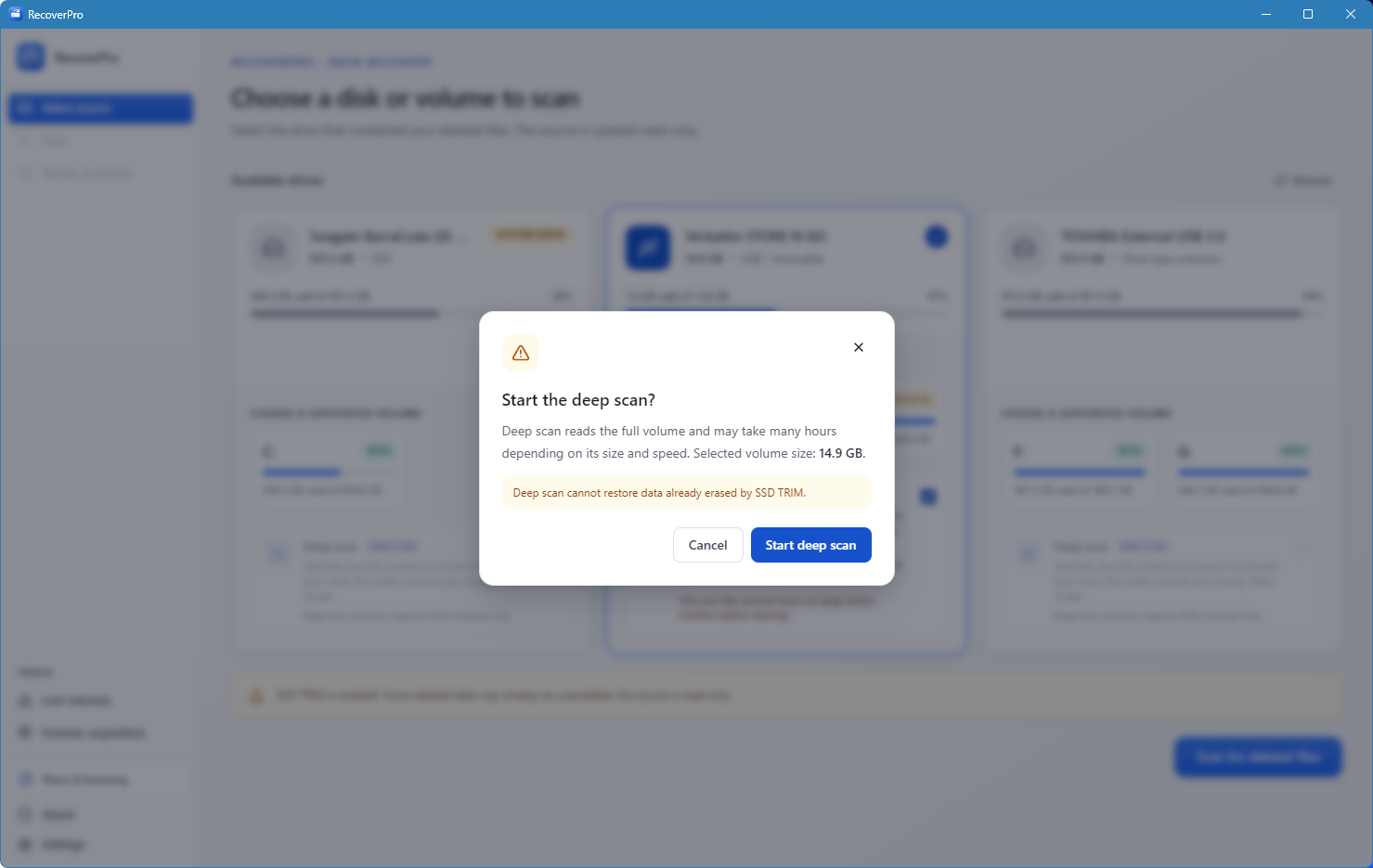
A deep scan can run for hours on a large volume. RecoverPro shows the size of the volume you picked and a clear limit before it starts, so nothing long begins by accident.
Every candidate carries a recoverability rating and a status. Results stay labelled as provisional until their contents have been checked, so you never mistake a name in the index for a working file.
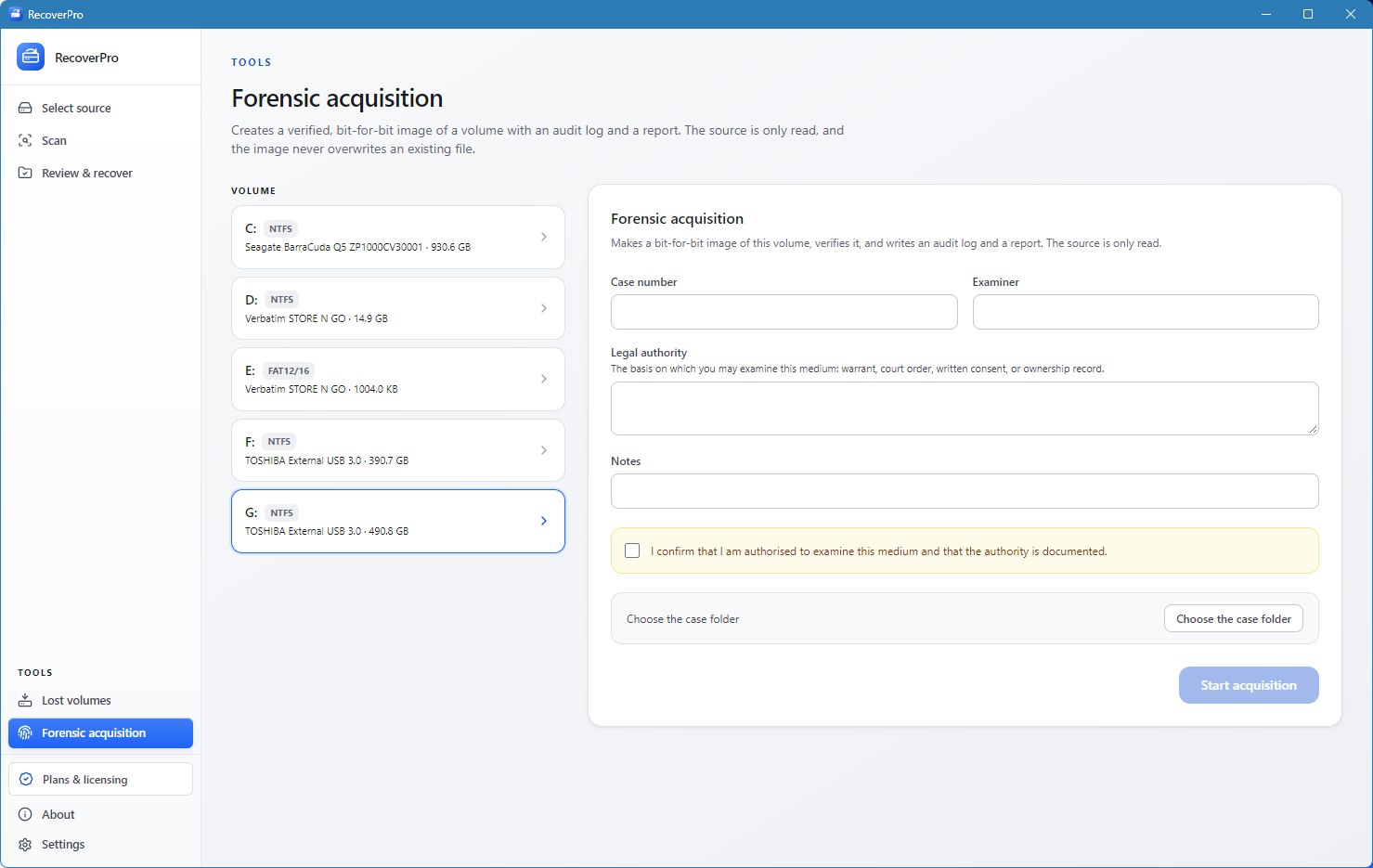
Create a verified, bit-for-bit image of a volume with an audit log and a report. The source is only read, and the image never overwrites an existing file.
Deep scan recognises these formats by their signatures, and new ones are added regularly. Damaged files go through a repair pass where it is possible.
The sooner you act, the better the chances of recovering a deleted file. Each step protects the data that is still on the disk.
Do not save, install or download to the drive that held the file. New data can overwrite the deleted one.
Pick the drive in RecoverPro and run a scan. The source is only read, so the scan itself does not change it.
Recover into a folder on a different disk, then check the recovered files before you rely on them.
A few rules that are enforced in the code, not only promised in the interface.
The disk is opened with read access only. Nothing in the recovery path asks the drive for write access.
System drives and SSDs with TRIM are flagged before you scan, because deleted data on them may already be gone.
Raw disk access requires administrator rights, so RecoverPro asks for elevation through its manifest and nothing else.
Built for your own drives and for media you are authorised to examine. Forensic mode asks you to confirm that authority.
Straight answers about file recovery on Windows. More detail is in the guide.
You can start with 100 free file recoveries. A paid licence removes that limit.
No. The source disk is opened read-only, and recovered files are saved to a different drive. Always choose a destination on another disk.
A format usually clears the file-system index but leaves the data on disk until it is overwritten. Stop using the drive, then scan it. The deep scan searches the raw disk for known file types. Results depend on whether the data has been overwritten.
Often not once TRIM has erased the blocks. On SSDs, stop writing to the drive and scan straight away. RecoverPro flags SSDs with TRIM before you start, so you know what to expect.
Scanning works on NTFS, FAT12, FAT16, FAT32 and exFAT volumes, including the deep scan.
Yes. The deep scan looks for known photo, document, video, audio and archive formats by their signatures. Damaged files go through a repair pass where it is possible.
Read-only recovery, with a clear view of what can come back.